Talkies Tips

Microphone control

1) You can tap the mike for it to listen, say something, then tap the mike again to make it stop listening. This is useful in a noisy environment when you don’t want the mike to pick up someone else’s conversation. 2) You can change how long the mike waits when you pause while speaking […]

Talkies Tips

What Are Botcoin?

With Botcoin tokens you can: ​  1) Buy bots in the Talkies Bot Store.​  2) Buy voice responses in the Talkies app. You can get Botcoin tokens in the Talkies app. ​On the Talkies main menu, tap Bot Store, then Wallet, then Add to wallet. 99 cents US buys you 100 Botcoin.

Talkies Tips

Copying Bot Messages

Places where you can copy the message content of a bot: My Bots /  [BotName] / View / Edit: A tap & hold lets you select and copy any portion of the message content of the bot. My Bots /  [BotName] / Talk): On the Talk Page, tap an individual message. If the message has a pencil

Talkies Tips

The Voice Settings Page

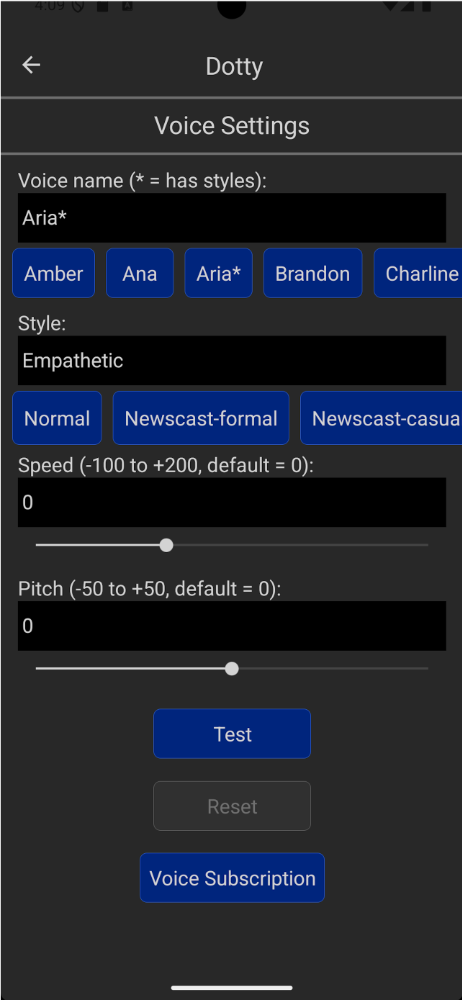
The Voice Settings page lets you change the way your bot sounds. Voice name – there are 23 voices you can listen to. Style – voices with an asterisk (“*”) offer different styles, like Cheerful or Sad. Speed – your bot can speak fast or slow. Pitch – your bot can speak high or low.

Uncategorized

Uploading Bots to the Store

To upload a bot for selling in the Talkies Bot Store, open the Talkies app, then 1) Go to the My Bots page 2) Tap Share 3) Tap Upload to the Bot Store. You will be asked to sign in to the Talkies Bot Store. If you don’t have a Bot Store account, you can

Talkies Tips

The Bot Settings Page

The Bot Settings page is a good place to go when creating or modifying a bot. Fields are: Bot name – change your bot’s name here.Bot type – choices: ChatGpt, Conversation, Journal, List, Recipe, Story.Learning mode:* Active – (default) the bot learns. If it is a Conversation bot, it prompts you to tell it what to

Talkies Tips

Talkies Help System

The Talkies help system lets you learn Talkies commands in depth. Select a Lesson bot on the My Bots page and tap Talk. (A Conversation bot with Learning Mode off is ideal.) Then give the command “Help”. From there you can drill down and explore the entire help system tree.

Talkies Tips

Silencing a Bot

You can stop a bot from speaking in different ways: 1) When the bot is speaking, tap to one side of the microphone or almost anywhere on the screen. The bot will stop.2) Give the command “Be quiet” and the bot will respond silently after that until you give the command “Speak”.3) On the Bot

Talkies Tips

Creating Bots

I: Lesson bots are a good way to learn to create bots. They are (as of this writing):* Lesson1Introduction* Lesson2BotTypes* Lesson3BotMaking* Lesson4ChatGPTBots Take the lessons in their numbered order. Each builds on the knowledge gained from the last. Get the Lesson bots from the Sample Bots page in Talkies. Tip: You can view the entire lesson contents of

Talkies Tips

Widgets

Talkies Widgets are like speed-dial buttons to your bots. Tapping a widget on your home screen connects you to that bot. You can have a widget for every bot. I have a MrKnowItAll widget and a Journal widget. A tap on MrKnowItAll opens a chat window to MrKnowItAll. A tap on Journal opens my Journal. To

Shopping Cart
Scroll to Top